Business process management (BPM) software Your processes, KPIs and objectives in one place, with a record of who did what.

Capena turns the way your company works into processes people actually follow. Every case feeds the indicators management looks at, so the numbers on the dashboard have a source you can open. The repetitive parts (emails, lookups in SAP or your databases, API calls, reading documents, reminders) run by themselves. You set them up by picking from lists.

Free 14-day demo workspace. No card. Pricing will be announced at launch.

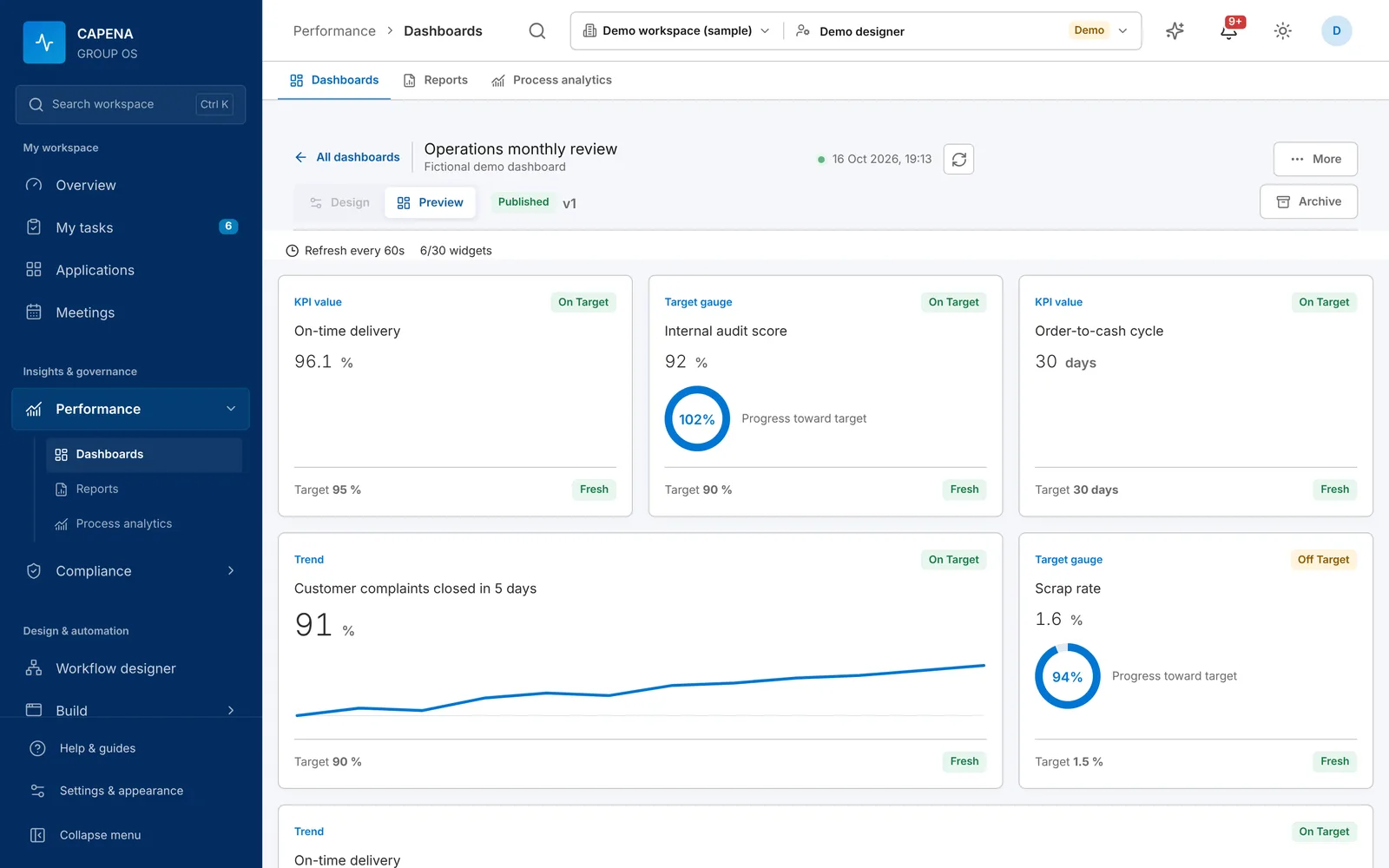
KPI dashboard with on-time delivery, internal audit score, order-to-cash cycle, complaint closure trend and scrap rate
Automations picked from listsemail, SMS, APIs, databases, timers
Connects to what you useSAP HANA, SQL, REST, SOAP, Microsoft 365
Romanian and Englishin the whole interface
Cloud or on-premisessame product

See it run

A process, step by step: people, rules and automations working together

Pick an example. Each case moves to the next role on its own; rules check the work, automations do the routine part and the KPI counts the result.

More information needed Start · 01Return requestCustomer serviceTask · 02Goods checkWarehouseTask · 03Commercial decisionSales managerTask · 04Credit noteFinanceEnd · 05ClosedDone Start · 01Return requestCustomer serviceTask · 02Goods checkWarehouseTask · 03Commercial decisionSales managerTask · 04Credit noteFinanceEnd · 05ClosedDone
–Cases completed
–Closed on time
–Sent back for rework
–Automations run

What happens at each step

Live simulation
  1. PersonRequest registered with order number and photos
  2. AutomationCustomer looked up in SAP HANA, account manager filled in
  3. PersonCondition recorded: damaged
  4. RuleValue over 500 RON: manager approval required
  5. PersonApproved by someone other than the requester
  6. AutomationERP REST API called, document number saved on the case
  7. AutomationEmail sent to the customer with the credit note
  8. KPIKPI “Returns closed on time” updated
  9. RuleSent back to the warehouse with a comment
Cause not confirmed Start · 01Report defectProductionTask · 02ContainmentQualityTask · 03Root causeEngineeringTask · 04Corrective actionQualityEnd · 05Effectiveness checkQuality manager Start · 01Report defectProductionTask · 02ContainmentQualityTask · 03Root causeEngineeringTask · 04Corrective actionQualityEnd · 05Effectiveness checkQuality manager
–Cases completed
–Closed on time
–Sent back for rework
–Automations run

What happens at each step

Live simulation
  1. PersonDefect reported from the line with photos
  2. AutomationQuality team emailed with the photos attached
  3. PersonAffected batch blocked, checklist confirmed
  4. RuleProcedure acknowledged before the step can close
  5. AutomationFollow-up action created with owner and due date
  6. AutomationReminder after 5 working days if still open
  7. KPIKPIs “Scrap rate” and “Open corrective actions” updated
  8. RuleEffectiveness test failed: back to root cause
Dates overlap a blackout period Start · 01RequestEmployeeTask · 02Manager approvalLine managerTask · 03HR checkHREnd · 04RegisteredDone Start · 01RequestEmployeeTask · 02Manager approvalLine managerTask · 03HR checkHREnd · 04RegisteredDone
–Cases completed
–Closed on time
–Sent back for rework
–Automations run

What happens at each step

Live simulation
  1. AutomationStarted from an Outlook email, fields filled from the message
  2. RuleThe requester cannot approve their own request
  3. PersonApproved in My tasks
  4. PersonBalance and replacement checked
  5. AutomationRow written to the HR database, HR emailed
  6. KPIKPI “Approval time” updated
  7. RuleReturned to the manager with a comment

A simulation of demo processes, built from the same steps, rules and automations you configure in the workflow designer. Every second case is sent back once, as real work sometimes is.

What it is for

Most companies already have processes, spread over inboxes and spreadsheets.

A return, an approval or an audit finding moves through email, an Excel tracker, a chat message and someone’s memory. Nobody can say where it is, and the monthly KPI is rebuilt by hand. Capena gives that work a defined path, an owner at every step and a number at the end.

TodayEmail threadExcel trackerChat messagePaper formShared folder???With CapenaRequestCheckApproveDoneOwnerQuality teamDue in 2 daysKPIClosed on time91%

Process studio with AI

Describe a process. The AI builds it in the studio while you watch.

Scroll to follow a customer return from a paragraph of text to a published workflow. Every stage, path, form and automation the AI proposes lands in the same studio you would use by hand, and you decide what stays.

  1. 01

    Describe the process in your own words

    Open Create with AI and write what happens, who does it and when. A paragraph is enough. The AI drafts the stages, roles, forms, paths, automations and KPIs from it.

    Runs on Claude or on a local Ollama model that your administrator connects.

  2. 02

    Answer a few questions

    When something is unclear, the AI asks: who approves, which fields are required, what happens at a deadline. Each question offers two to six options and room for your own answer.

    You can go back and change an answer before it continues.

  3. 03

    Watch the stages appear on the canvas

    The plan is drawn on the same canvas as the editor. Each stage is marked Planned, Building or Configured as the AI works through it. Select a stage to see its form, defaults and owner.

    The AI sees your description, your roles and the names of published resources. Data source records and credentials stay on the server.

  4. 04

    Paths and rework, drawn for you

    Approvals, branches and return paths are connected between the stages. Every AI proposal waits for your choice before it is applied.

    Later you can ask for changes in plain words, such as “add a check by finance”, and review the difference.

  5. 05

    Forms with their rules

    Every step gets its fields: choices, files, amounts and tables. Visible, required and read-only rules are part of the step and are checked on the server.

    Open Form preview to fill the form exactly as your colleagues will.

  6. 06

    Automations on the right steps

    Lookups, emails, API calls and reminders are attached to the steps where they belong, using the connections your company has already published.

    Each automation stays editable on the Automations tab.

  7. 07

    Apply, review and publish

    Apply the draft to the editor as one change you can undo. Run the issues check and the simulation, send it for review, and publish when a second person approves.

    Prefer to build by hand or already have BPMN 2.0 files? The same studio does both.

Customer return DraftPublished v1
The canvas fills in as the AI plans… More information needed Return requestCustomer servicePlanned✓ Configured⚡ SAP HANAGoods checkWarehousePlanned✓ ConfiguredCommercial decisionSales managerPlanned✓ ConfiguredCredit noteFinancePlanned✓ Configured⚡ REST · ERPClosedDonePlanned✓ Configured⚡ EmailKPI · closed in 10 days The canvas fills in as the AI plans… Return requestCustomer servicePlanned✓ Configured⚡ SAP HANAGoods checkWarehousePlanned✓ ConfiguredCommercial decisionSales managerPlanned✓ ConfiguredCredit noteFinancePlanned✓ Configured⚡ REST · ERPClosedDonePlanned✓ Configured⚡ EmailKPI · closed in 10 days
Build your first process The AI designer appears in the studio once an administrator connects Claude or a local Ollama model.

Automations

Let the process do the routine work

Every automation is three choices: when it runs, an optional condition, and what to do. The process owner sets it up in the same designer as the steps, picking fields and connections from lists.

  1. 1

    When

    a case starts · a step opens · a step is completed · a path is taken · the case is closed · time passes in a step

  2. 2

    If

    Compare form fields, or reuse a tested rule from the rule library. Leave it empty to always run.

  3. 3

    Then

    One or more actions in order, from the list below.

Damaged return: notify and creditPublished v3
When
step Goods check is completed
If
Condition equals Damaged and Value > 500 RON
Then
  1. Look up customer in SAP HANA → fill “Account manager”, “Region”
  2. Send email to Account manager with the photos attached
  3. Call REST API ERP · create credit note → save “Document no.”
  4. Create follow-up action for Quality team due in 5 days
Every part is chosen from a list.

Inside the case

  • Fill, copy or clear fields
  • Look up a value in a published list or database and fill several fields at once
  • Stop the step with a clear message when a business rule fails
  • Create a follow-up action with an owner and a due date
  • Hand work to a reusable subprocess and take its results back

Other systems

  • Send email with case files attached (SMTP or Microsoft 365)
  • Send an SMS
  • Call a REST or SOAP API and write the answer back into fields
  • Write a row to SQL Server, MySQL, MariaDB or PostgreSQL
  • Wait for another system to finish, confirmed by a signed webhook

Documents

  • Read text from scanned PDFs, images and Word files (OCR)
  • Read Excel or CSV rows into a table, or only the totals
  • Pull invoice and form fields out of a document, by rules or with AI if you turn it on

Time

  • Timers per step, counted in working days and office hours
  • Repeat a reminder until someone acts
  • Move the case on, for example to escalation, when time runs out

Safe by default

  • Reviewed and published like the process itself
  • Previewed and simulated before they run
  • Changes inside the case roll back together if a check fails
  • Outgoing calls are queued and retried; every attempt is logged
  • Passwords and tokens stay on the server

Automatic intake

An email arrives. An event fires. Work starts.

Turn incoming requests into processes with owners, steps and evidence. Configure the source, check what matches and choose what to keep.

From an inbox

Watch an IMAP folder automatically. Filter by sender and subject, and preview recent messages before enabling the rule.

  1. Choose the inbox and published process
  2. Keep the message, recipients and selected attachments
  3. Leave, mark read, move or delete after saving
Service email → Maintenance process → Processed folder

From another system

Receive signed JSON webhooks and start the selected process. Pick a matching field from a sample event and preview the result.

  1. Choose the process and optional event filter
  2. Connect the sender with a shared signing secret
  3. Keep the event data and review recent deliveries
Request created → Service process → Team task

Integrations

Keep SAP, your databases and Microsoft 365. Capena works with them, in both directions.

An administrator connects a system once (test button included), has the connection reviewed, and from then on every process in the company can use it. Credentials stay encrypted on the server; people only ever pick the connection by name.

ReadsActsSAP HANASQL Server · Oracle · PostgreSQLMySQL · MariaDB · SnowflakeREST / JSONExcel · CSV · PDFOutlook email · webhooksCapenaprocesses,rules,automationsEmail · SMTP / Microsoft 365SMSREST and SOAP callsRows written to SQLSharePoint · OneDrive · DriveKPIs and dashboardsReadsSAP HANASQL Server · Oracle · PostgreSQLMySQL · MariaDB · SnowflakeREST / JSONExcel · CSV · PDFOutlook email · webhooksCapenaprocesses, rules, automationsActsEmail · SMTP / Microsoft 365SMSREST and SOAP callsRows written to SQLSharePoint · OneDrive · DriveKPIs and dashboards

ERP and databases

  • SAP HANA
  • SQL Server
  • Oracle
  • MySQL
  • MariaDB
  • PostgreSQL
  • Snowflake
  • ClickHouse

Read KPI values and form choices from approved views. Write rows back to SQL Server, MySQL, MariaDB and PostgreSQL.

APIs and events

  • REST / JSON
  • SOAP
  • Webhooks (HMAC)

Call HTTPS APIs from a step, start processes from signed webhook events, or resume waiting processes through signed callbacks.

Microsoft 365 and Google

  • Outlook
  • SharePoint
  • OneDrive
  • Google Drive
  • Microsoft 365 mail

Start a process from an Outlook email, work with SharePoint, OneDrive and Google Drive files under each user’s own account, send mail through Microsoft 365.

Messages

  • IMAP
  • SMTP
  • SMS
  • In-app inbox

Watch incoming email folders to start processes, save chosen message content and attachments, and send email or SMS from automations.

Files and documents

  • Excel / CSV
  • PDF
  • Word
  • OCR

Import spreadsheets, read scanned documents, search inside them, and export procedures and processes to Word or PDF.

Process models and AI

  • BPMN 2.0
  • Camunda
  • Flowable
  • Signavio
  • Claude
  • Ollama

Import BPMN files from other tools. Draft a process from a plain description with Claude or a local Ollama model; AI is off until you connect it.

Missing a system? If it has a REST or SOAP API, a database view, a webhook or an Excel/CSV export, it can be connected.

Who gains what

Better days for every role in the company

The same workspace serves the person doing the work, the one managing it and the one checking it. Choose a role to compare its day today with its day in Capena.

See how the company performs without waiting for the monthly report.

TodayWith Capena
Monthly numbers arrive late, rebuilt by hand in ExcelKPI health on dashboards, updated as cases close and data is imported
To know where a request is, you ask aroundEvery case shows its step, who acts next and since when
Problems surface at the end of the monthOverdue actions and red audits are on the first page after sign-in
Each company in the group reports its own wayOne structure for the whole group, viewed together or company by company

What they see in Capena

  • Group overview
  • Dashboards per company
  • Management review
  • Process portfolio
  • Findings and overdue actions
Try it in a demo workspace

Know the workload, the bottlenecks and whether the rules are followed.

TodayWith Capena
Work is handed out by email and phoneEach request lands as a case for the right role, in the right department
Nobody knows which step slows things downProcess analytics show cycle times, slow steps and rework
Procedures sit in a folder nobody opensThe procedure appears on the step it applies to and must be confirmed
Improving a process means retraining everyonePublish a new version; the form guides people through it

What they see in Capena

  • Department processes
  • Process analytics
  • Team cases and waiting times
  • Department KPIs
Try it in a demo workspace

Less searching and retyping, clearer next steps.

TodayWith Capena
Searching old emails for the latest versionOne list: My tasks, oldest and overdue first
Unsure what to do next or what is allowedThe form shows only the fields for this step, with its checklist
The same data typed into three systemsValues are looked up and filled automatically from your systems
Requests arrive as emails to forwardStart the process from Outlook, with the email already filled in

What they see in Capena

  • My tasks
  • Their cases and history
  • Procedures for their steps
  • Search, limited to what they may see
Try it in a demo workspace

Evidence that collects itself while people work.

TodayWith Capena
Evidence is scattered across drives and inboxesFiles, answers and decisions stay on the case, ready for the audit
Audits are done on paper and typed in laterScored audits: green, amber or red, calculated as they are filled in
Corrective actions are promised, then forgottenEach finding gets an action with an owner, a due date and reminders
No proof that the procedure was readAcknowledgement of the procedure is recorded on each step

What they see in Capena

  • Risk and audit registers
  • Controlled procedures
  • Evidence packages
  • Complete case history
Try it in a demo workspace

Fewer spreadsheet macros and one-off integrations to maintain.

TodayWith Capena
Every new integration is a projectA connection is set up once and reused by every process
Access rights are unclear and hard to removeRoles per company and department, revoked immediately
Shadow spreadsheets hold business rulesRules live in a reviewed, versioned rule library
Hard to say who changed whatA full audit trail of configuration and work

What they see in Capena

  • Users and access
  • Data sources and connections
  • Modules
  • Services and database (on-premises)
Try it in a demo workspace

Department by department

Which processes it improves, and the number that shows it

Start with one department and one process. The same designer, rules, automations and dashboards then carry over to the next one.

DepartmentProcessesHow Capena helpsKPI that shows it
Sales and commercialCustomer returns, credit limits, discount approvalsDecisions within agreed limits, with the customer’s data already filled in from the ERPReturn cycle time
ProcurementPurchase requests, supplier onboarding, supplier checksThe supplier check is one reusable subprocess that every purchase callsPurchase approval time
Logistics and warehouseWrong deliveries, carrier claims, inventory auditsEvery incident has a recorded cost, a root cause and a check that the fix workedOrder accuracy
Finance and accountingInvoice approval, month-end close, payment requestsMaker and checker enforced by the system; invoice data read from the PDFDays to close
Human resourcesLeave, onboarding and offboarding, equipmentA guided leave-request wizard; approvals the requester cannot bypassApproval time
QualityNon-conformities and 8D, internal audits, proceduresScored audits, findings and corrective actions in connected registersOpen corrective actions
ITAccess requests, change requests, incidentsA ticket in your service desk is created by API and the case waits for its signed replyTime to resolve
Legal and administrationContract review, document approval, asset requestsControlled documents with review, effective revisions and Word/PDF outputContracts reviewed on time
ManagementObjectives, management review, recurring meetingsMeetings use the same numbers as the dashboards and link straight to the process, KPI or document discussedObjectives on target

Visibility from the whole group down to a single step

Zoom in as far as you need. At every level people see only what their role allows, and search follows the same rule.

  1. Group

    All companies on one overview; modules chosen once for the group

  2. Company

    Dashboards, KPI health and freshness, the process portfolio

  3. Department

    Its processes, procedures, KPIs and people, with inherited roles

  4. Process

    Versions, cycle times, slow steps, rework and linked KPIs

  5. Case

    Current step, who acts next, files, messages and the path so far

  6. Step

    Who did it, when, which fields changed and which procedure was confirmed

How the pieces fit

One loop, from the process map to the management review

  1. 01

    Design the process

    Steps, forms, rules and who approves what, in the workflow designer. Nothing goes live until a second person has reviewed it.

  2. 02

    Run it as cases

    Each request, incident or audit becomes a case. People see their tasks; the case knows its step, owner and deadline.

  3. 03

    Measure the results

    KPIs take values from cases, from your systems or from people, with evidence. Targets and thresholds show health at a glance.

  4. 04

    Review with management

    Dashboards and meetings use the same numbers. The agenda links to the process, the KPI and the document in question.

  5. 05

    Correct and improve

    Findings get corrective actions with owners and due dates. A better process is a new version; running cases stay on theirs.

One workspaceevery step leaves a record01Design the process02Run it as cases03Measure the results04Review withmanagement05Correct and improve01Design the process02Run it as cases03Measure the results04Review with management05Correct and improve

Screens from the application

This is what your team will use

Real screens, captured from the application with fictional demo data. Use the tabs, or switch the page to dark mode: the screenshots follow.

Dashboards. Published KPIs as values, trends and gauges, each with its target, health and how fresh the data is.

KPI dashboard with on-time delivery, internal audit score, order-to-cash cycle, complaint closure trend and scrap rate

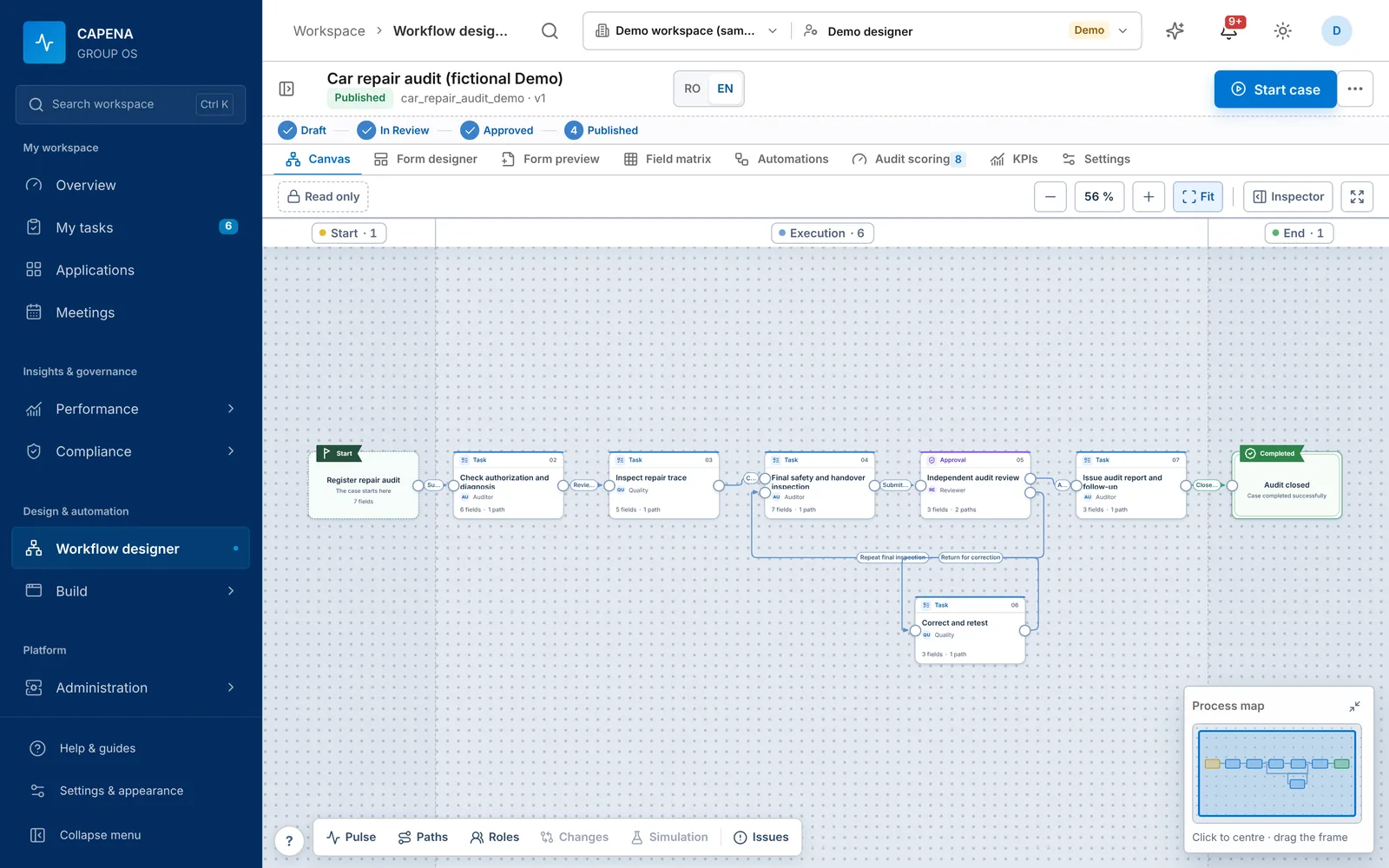
Workflow designer. A seven-step audit with a return path for corrections. Lanes, roles, fields per step and a process map.

Workflow designer showing a seven-step car repair audit with a rework loop

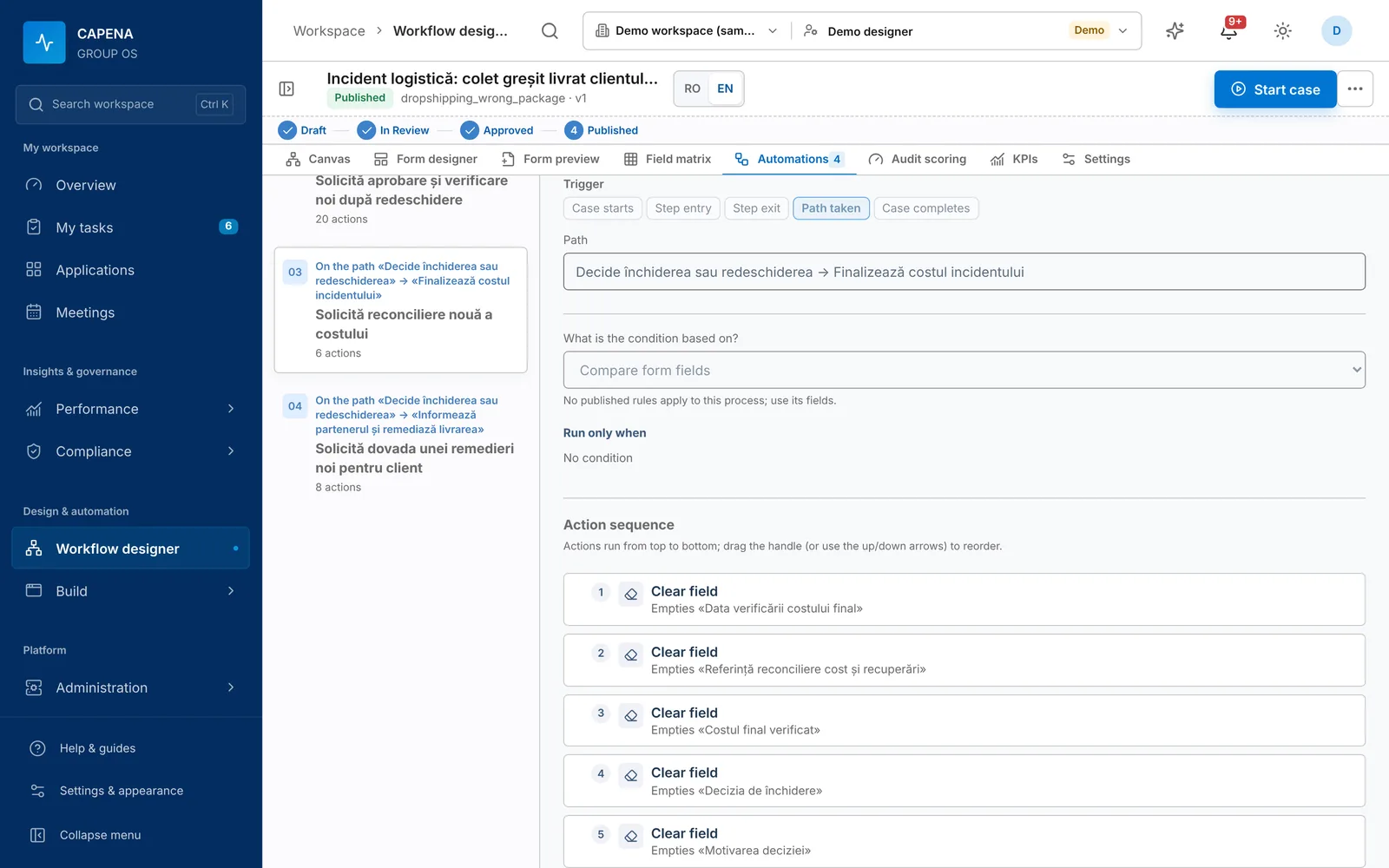
Automations. A real rule from the demo: run when a path is taken, with an optional condition, then six actions in order. Everything is picked from lists.

Automations tab of the workflow designer: trigger chosen from a list, an optional condition and the ordered action sequence

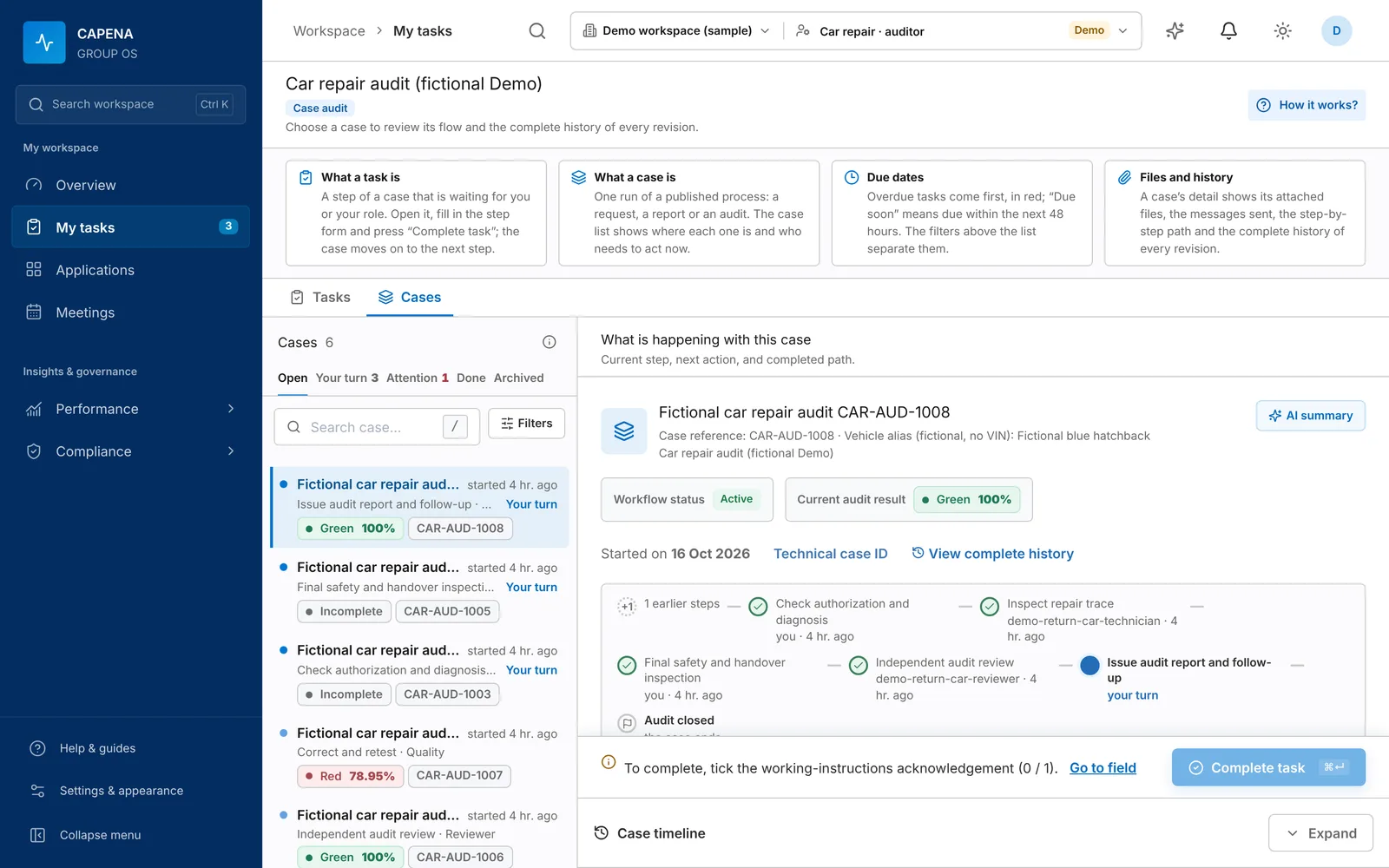
Tasks and cases. Which cases wait for you, their audit score, the path so far and what is needed to complete the step.

Case list with audit scores and the current step of a selected case

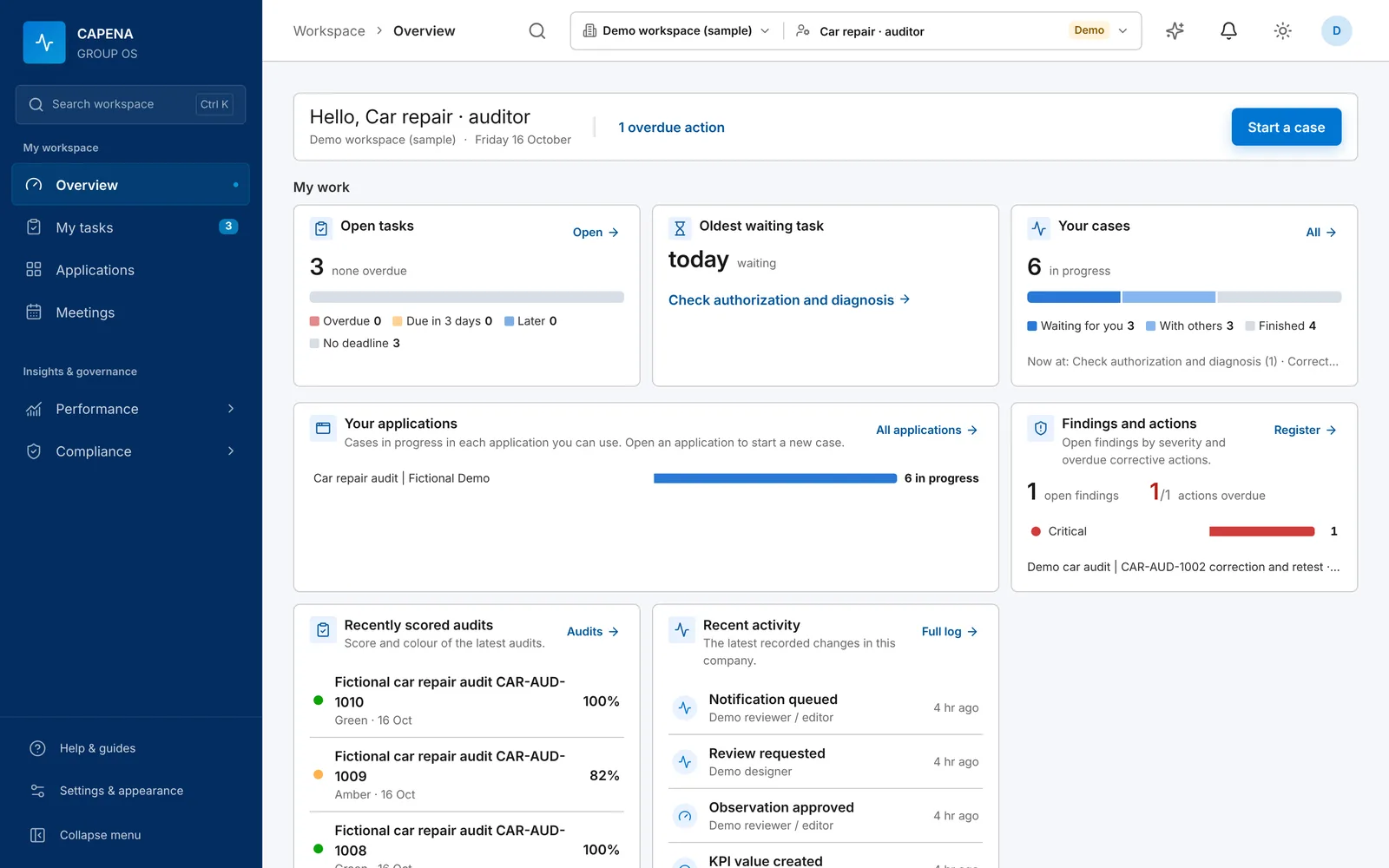
Overview. The first page after sign-in: open tasks, cases per week, the process portfolio and open findings.

Overview page with open tasks, cases per week, process portfolio and findings

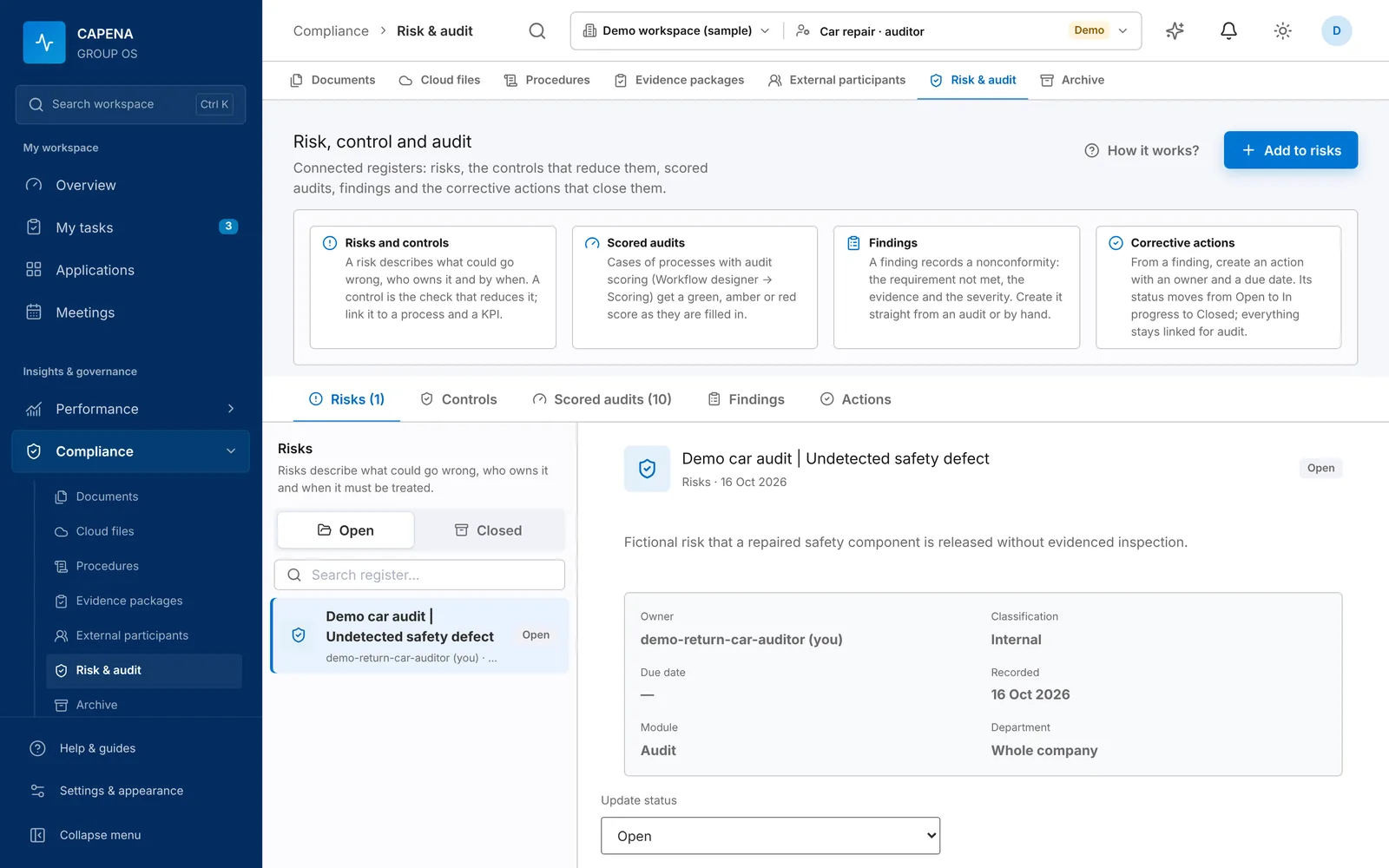
Risk and audit. Risks, controls, scored audits, findings and actions in connected registers.

Risk and audit register with a linked risk record

Everything in the product

The complete feature list

All of this is in the demo workspace. Module names match the application menu, so you can find each one after you sign up.

Design how work runs

Workflow designer
Visual canvas with branches, rework loops, simulation and an issues check before you publish. Start from scratch, import a BPMN 2.0 file or describe the process to the AI assistant.
Forms and field matrix
Step forms with tables, choices and files. Visible, required or read-only per step, enforced on the server.
Rule library
Reusable, versioned business rules with server-side tests. A process keeps the exact rule version it was published with.
Automations
Picked from lists, no code: fill fields, look up values, send email or SMS, call REST or SOAP APIs, write to a database, read documents and run timers.

Do the work

Tasks and cases
One inbox per person. Every case shows its current step, who acts next and the full history of every revision.
Applications
A home page per team that groups its processes, KPIs, dashboards and reports.
Meetings
Agendas edited together in real time, recurring series, linked processes and documents, PDF minutes.
Email rules
Watch IMAP folders, filter incoming mail and start processes automatically. Keep selected attachments and choose what happens to the original message.
Webhook rules
Signed JSON events start processes, with optional filters, payload previews, delivery history and protection against duplicate starts.
Outlook add-in
Start a process from a received email; subject, sender and attachments go straight into the form.

Measure it

KPIs and objectives
Target, warning and critical thresholds. Manual values need evidence and a second person to approve them.
Dashboards
Value, trend and gauge widgets with health and data freshness, reviewed before publication.
Reports and process analytics
Saved reports, cycle times, slow steps, rework and open cases per process and department.
Data sources
Import values from CSV/XLSX, SAP HANA, SQL Server, MySQL, MariaDB, PostgreSQL, Oracle, Snowflake, ClickHouse or REST, with source lineage.

Keep it under control

Documents and procedures
Controlled documents with review, effective revisions, revision comparison and Word/PDF output.
Risk and audit
Risks, controls, scored audits (green, amber, red), findings and corrective actions, linked together.
Search
One search over processes, cases, documents and meetings, including scanned PDFs. It only shows what you are allowed to see.
Organization and access
Several companies in one group, department trees, roles, separation of duties and a complete audit trail.

Still being built

So you know before you plan around it:

  • Parallel branches (several steps running at the same time)
  • Task delegation and holiday substitutes
  • Workflow actions for SharePoint and Active Directory (file access and sign-in already work)
  • Native mobile apps (today: the full app works in the mobile browser)
  • More chart types and scheduled report delivery

Transparency

Every change is reviewed. Every number has a source.

Draftauthor editsIn reviewanother person checksApprovedready to go livePublished v2new cases use v2returned with a commentA case started on v1stays on v1Draftauthor editsIn reviewanother person checksApprovedready to go livePublished v2new cases use v2A case started on v1 stays on v1
  • Processes, rules, KPIs, dashboards, documents and settings go through draft, review and publication. The person who edits cannot approve.
  • A published version never changes. Improvements become a new version, and cases already running keep the one they started with.
  • Manually entered KPI values need evidence and a second person’s approval. Imported values keep a link to their source.
  • Each case keeps the step, the person, the time and the field changes of every action.

Industries

One platform for the processes of every industry

The same designer, automations and connections serve every department. Typical starting points, with automations teams usually add first:

Distribution and wholesale

Returns, credit limits and supplier issues usually live in email threads. Here each one becomes a case with an owner and a deadline.

  • Customer returns
  • Credit limit approval
  • Supplier non-conformity
  • When a return request is submitted, look up the customer in SAP HANA and fill in the account manager
  • When the credit note is approved, call the ERP’s REST API and save the document number on the case

KPIReturn cycle time · Returns closed on time · Overdue receivables

Manufacturing

Quality problems, change requests and maintenance need the same discipline every time. The process enforces the steps and the evidence.

  • Non-conformity and 8D
  • Engineering change request
  • Maintenance work order
  • When a defect is reported with photos, email the quality team with the photos attached
  • When a corrective action is still open after 5 working days, send a reminder, and after 10 days move the case to escalation

KPIScrap rate · First-pass yield · Open corrective actions

Logistics and e-commerce

A wrong parcel costs money twice: the remedy and the repeat. Record the cost, find the cause and check that the fix worked.

  • Wrong or damaged delivery
  • Carrier claim
  • Warehouse audit
  • When the carrier’s invoice PDF is attached, read the amounts and invoice lines into the form
  • When the incident is closed, write the cost row to the reporting database (SQL Server, PostgreSQL…)

KPIOrder accuracy · Cost of incidents · Time to resolve

Automotive service

Repair audits with a score: every check answered, N/A excluded from the total, and a critical failure turns the result red.

  • Repair quality audit
  • Warranty claim
  • Safety handover check
  • When an audit scores red, create a corrective action for the workshop manager
  • When the car passes the handover check, send the customer an SMS that the car is ready

KPIAudit score · Comebacks · Rework rate

Finance and shared services

Maker/checker approvals and month-end checklists. The system stops anyone from approving their own request.

  • Credit-line drawdown
  • Invoice approval
  • Month-end close
  • When a drawdown is approved, call the bank’s API and wait for its signed confirmation before moving on
  • When the bank statement (Excel) is attached, read every row into a table and check the totals

KPIDays to close · Exceptions found · Approval lead time

HR and administration

Requests every company has. The leave-request wizard builds a working process in eleven guided steps.

  • Leave request
  • Onboarding and offboarding
  • Equipment request
  • When an employee emails a leave request, start the request from Outlook with the email filled in
  • When the leave is approved, email HR and record the leave in the HR database

KPIApproval time · Open requests · Requests returned

Getting started

From sign-up to your first measured process

  1. 1

    Create the workspace

    Company name, your name, a work email and a password. You confirm the email and you are the administrator.

  2. 2

    Set up the organization

    Companies, departments and roles: who works on which step and who approves. Then invite colleagues.

  3. 3

    Publish one process

    Pick one that hurts today, such as returns or leave requests. Draw it (or import a BPMN file), add the emails and lookups you now do by hand, have it reviewed and publish it.

  4. 4

    Attach the KPI

    Give it a target and thresholds and put it on a dashboard. From now on the number updates as cases close.

Pricing

Pricing: to be announced

Capena is preparing for general availability. The price list will be published before launch.

  • A simple monthly subscription per workspace
  • Priced for small and mid-sized companies
  • The demo workspace is free for 14 days
  • On-premises installation is discussed separately
Create a demo workspace

Where it comes from

Born in Romania, for companies anywhere

Capena was built in Romania, starting from the governance and performance needs of a group of companies: commercial, logistics, finance, HR, quality and IT departments working to the same rules. That is why it handles several companies in a group, Romanian and English side by side and strict separation of duties from day one.

RO · EN
two interface languages, chosen by each person
Groups
several companies in one workspace, each with its data kept separate
Web
works in any modern browser, on desktop and on mobile

Questions people ask before trying it

What exactly is Capena?

A web platform where you describe how a process runs (steps, forms, rules, who approves), your people work through it as tasks, and every case feeds the KPIs and dashboards your management reviews. Documents, procedures, audits, risks and meetings sit in the same place, linked to the processes they belong to.

Do I need a developer to build a process?

No. Processes, forms and rules are built in the visual designer. Someone who knows how the work runs, usually a process owner or a quality or controlling person, can do it. Connecting a database is a one-time setup for an administrator.

Which systems can Capena connect to?

SAP HANA, SQL Server, Oracle, MySQL, MariaDB, PostgreSQL, Snowflake and ClickHouse for reading data; SQL Server, MySQL, MariaDB and PostgreSQL for writing; any REST or SOAP API; signed webhooks; SMTP and Microsoft 365 mail; SMS; Outlook, SharePoint, OneDrive and Google Drive; Excel, CSV, PDF and Word files. If a system has an API or a database, it can usually be connected.

Do automations need code?

No. You pick when the automation runs, an optional condition from the rule library, and the actions from a list; fields are chosen from pickers. An administrator sets up each connection once, and every process can then use it. You can preview an automation before publishing it.

What does the demo workspace include?

Your own workspace for 14 days, with you as administrator. You can invite colleagues, build and publish processes, run cases and set up KPIs and dashboards. No card is required. The confirmation link we email you is valid for 48 hours.

How much will it cost?

Prices will be announced at launch. The model is a simple monthly subscription, priced for small and mid-sized companies.

Can it run on our own servers?

Yes. Besides the cloud workspace there is an on-premises installer for Ubuntu 24.04 and Rocky Linux 9/10, with PostgreSQL, MySQL or MariaDB.

Which languages does it support?

Romanian and English across the whole interface. Each person picks their own language, and process names, steps and fields can carry both translations.

Is our data kept separate from other customers?

Yes. Every workspace keeps its data separate, and inside a workspace access is limited by company, department, role and document classification.

Does it use AI?

Only if your company turns it on. The AI designer drafts a whole process from a plain description, with stages, forms, paths and automations that you review before anything is applied. Other optional features are case summaries and reading data from invoices and forms. Everything else works without AI.

See it with your own process

Create a demo workspace, invite one colleague and publish the first process. You will know within a day whether it fits.

Create a demo workspace 14 days · no card · you are the administrator